You can print or export the journals / income statements in spreadsheets format.
Contents
- About print / export formats
- Print or Export History
- Print or Export History with specific categories
- Print or Export Overview
- Open Data with Spreadsheets
About print / export formats
You can print your data on iOS via the printers that work with AirPrint. Also, you can print or open your data in spreadsheets like Excel after exporting to PC or other apps.
*This feature is only for exporting in spreadsheets format. Please use [Settings => Data Backup] if you want to restore your data when you change your iOS devices.
If you want to make data backup or migrate it for importing into Taxnote, please refer to each help article from the following sections.
Print or Export History
- Open the menu [History] and tap the action button at the top right corner of the History.
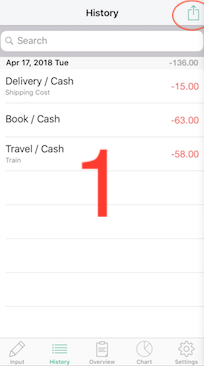
- Tap [Export・Print Master].
![Screenshot pointing to [Export / Print Master]](/hc/article_attachments/4404162170777/image4.png)
- On the [Export・Print Master], tap the [Export CSV] or [Print] button to print / export.
By tapping [Period], you can freely specify the period to print / export.![Screenshot pointing to the [Export CSV] or [Print] button](/hc/article_attachments/4404162173721/image3.png)
* When you use "Print" or "Create PDF", the characters may be too small. In that case, save it in a memo and then print the data from the memo.
Print or Export History with specific categories
You can also print or export the journals after narrowing down to specific accounts.
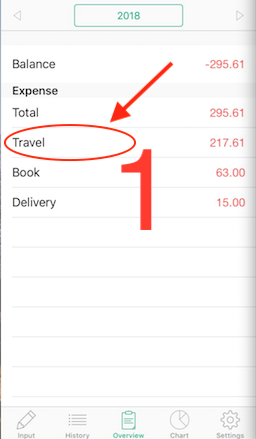
- Open the menu [Overview], tap the year / month part at the top of the screen, and specify the period you want to narrow down. Then tap the account you want to filter.
- Tap the action button at the top right corner of the journal.
For the subsequent procedure, see the item "Print or Export History".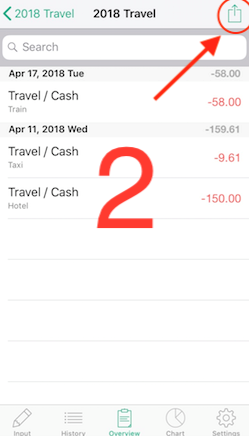
Print or Export Overview
- Open the menu [Overview] and tap the year and month part at the top of the profit and loss table screen.
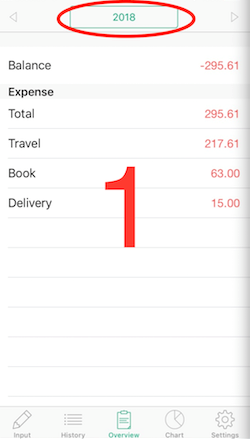
- Tap [Export - Print] to export or print the Overview.
![Screenshot pointing to [Export - Print]](/hc/article_attachments/4404162184473/image6.png)
Open Data with Spreadsheets
If you want to open your History or Overview data with spreadsheets like Excel, please export them into your PC or apps.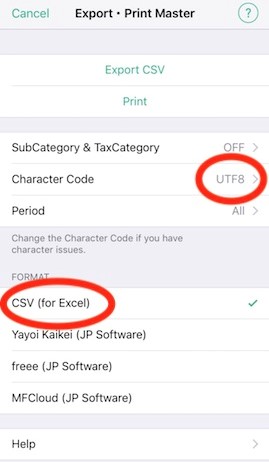
How to open your data with iOS Numbers app
- Select UTF8 and CSV, then tap the Export button.
- Save your data into iOS note app.
- Open your data from iOS note app to show your csv data.
- Tap the action button in the upper right to copy to Numbers.