You can reset the registered data. You can also specify subjects and periods, and delete them all at once.
Contents
- Data reset
- Bulk Delete by specifying the subject / period
- Precautions for data deletion
- Explainer video
Data reset
You can reset the registered data from the "Journal" menu. The operating procedure is as follows.
- Tap the "Journals" menu from the bottom of the screen.
- From the [Action] button at the top right of the "Journal" menu screen, tap [Delete XX data] ("XX" refers to the book name).
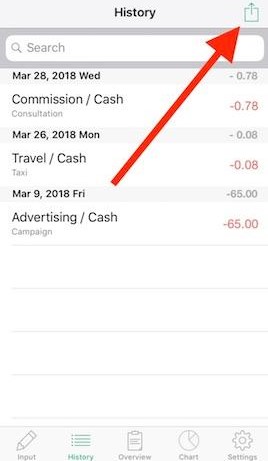
- A note about deleting data is displayed. If there is no problem with deleting it, tap the [Delete XX data] ("XX" refers to the book name) button.
* Once the data is deleted, it cannot be recovered. Be careful when deleting.
[Caution] About the unit of data deletion
Data is deleted by data reset on a book-by-book basis. If you manage multiple books, switch to the book to be deleted in advance from the [Settings] menu.
Bulk Delete by specifying the subject / period
From the "Profit and Loss Table" menu, you can delete all registered data by specifying the subject and period. The operating procedure is as follows.
- Tap the "Profit and Loss Table" menu from the bottom of the screen.
- Select the period you want to delete all at once from the buttons at the top of the screen.
- Perform one of the following operations according to what to delete.
- To delete all data in the period selected in step 2:
Tap the Balance line. - If you want to delete all income or expenditure data for the period selected in step 2:
Tap the Total row for Income or Expenditure. - To delete all data for a specific subject during the period selected in step 2:
Tap the subject line you want to delete, and then tap the [Total] line on the switched screen.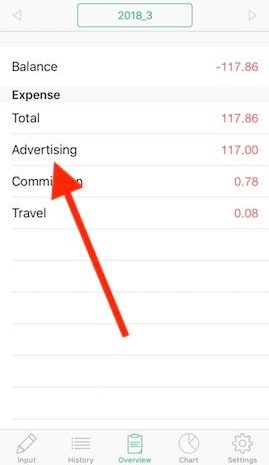
- To delete all data in the period selected in step 2:
- From the [Action] button at the top right of the screen that was switched in step 3, tap [Delete XX1 XX2] ("XX1" is the period, "XX2" is the deletion target).
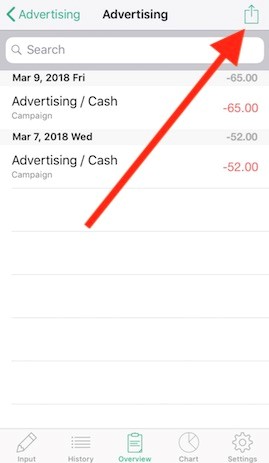
- A note about deleting data is displayed. If there is no problem with deleting it, tap the [Delete XX1 XX2] button ("XX1" is the period, "XX2" is the deletion target) button.
Precautions for data deletion
There are some points to note when deleting data.
- About data deletion operation and no recovery
- Once deleted, the data cannot be reverted. Therefore, when performing a delete operation, make sure if there is no problem with deleting it, and operate it carefully.
- About data deletion unit
- If you are dealing with multiple books, the registration data is retained for each book. If you cannot find the data to be deleted, check whether the books are selected correctly.
To switch books, tap the [Settings] menu and select the book to switch to.
- If you are dealing with multiple books, the registration data is retained for each book. If you cannot find the data to be deleted, check whether the books are selected correctly.
Explainer video
Please refer to this explanation video for data reset and batch delete operations.